1
Open the page
Enter the address, pick a country, and start browsing as you normally would. A session is running from that first click, whether or not anyone else ever joins it.
Team browsing
Send one link and you are both on the same live page, scrolling and clicking in real time. No meeting software, no download, and no account on either side.
A live session
Two people in one session on the same page. The chrome along the top is ours; everything under it is the site itself, live for both of them.
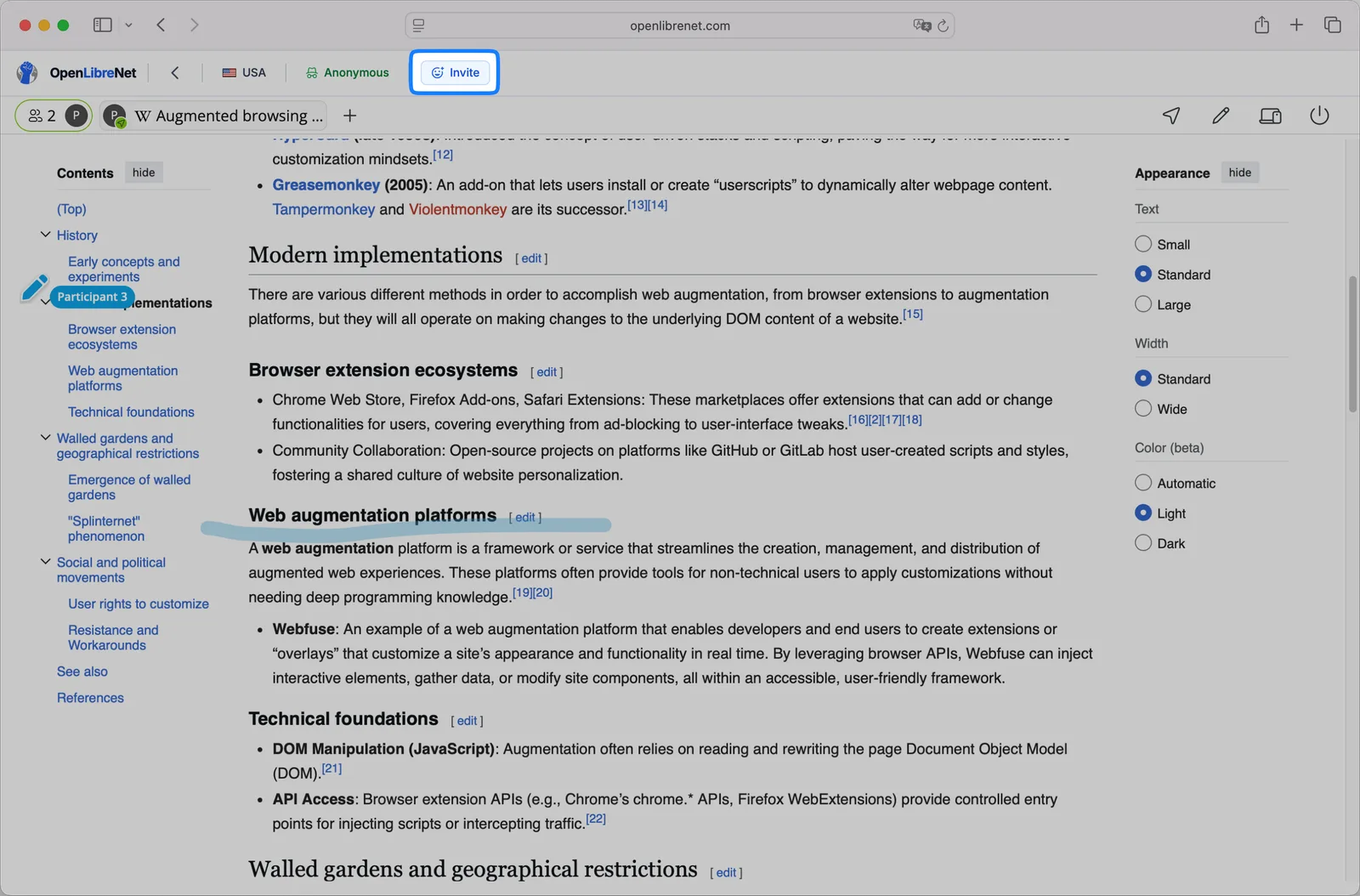
One button, one link. Whoever opens it lands in the session you are already in, on the page you are already reading.
Everyone can see where everyone else is pointing, which is what makes "this bit here" a workable sentence.
Mark up what you are talking about directly on the site. The annotation is part of the session, not a change to the page itself.
Sharing one
No scheduling, no room to create beforehand, and nothing for the other person to set up.
Enter the address, pick a country, and start browsing as you normally would. A session is running from that first click, whether or not anyone else ever joins it.
The button sits in the bar above the page. It hands you a link to the session you are already in, which you send however you like.
It opens in whatever browser they have, on a laptop or a phone, with no account and nothing to install. They land on the page you are on and follow along from there.
Against a screen share
A screen share sends a video of your desktop. Team browsing sends the page, and the difference shows up in almost everything that follows from it.
 Team browsing
Scroll the table sideways for every column
A screen share is still the right call when what you need to show is not a website. This replaces the case where it is. What actually crosses between two people in one session is set out in how it works .
What it is used for
Anywhere the sentence you keep repeating is some version of “no, the other button”.
A form, a booking, a council website. You open the session, send the link, and point at the field they are stuck on rather than describing where it is on a phone call.
Your own product or a live page you are discussing. They see it as a real page they can click, which is a different conversation from watching a recording of you clicking.
The person who needs help is the one least able to install anything. A link works on the machine they already have, in the browser already open.
Copy, layout, a competitor’s landing page. Both of you on the same live version, marking up what you mean instead of trading screenshots with arrows.
A research database, an internal tool, an unfamiliar interface. They follow along on the real thing and can take over the clicking when they are ready.
A holiday, a piece of furniture, a shared purchase. Two people on one listing beats sending links back and forth and losing track of which one you meant.
Limits
Sharing a live page is a real thing to hand someone. These are the parts that catch people out.
Anyone holding it can join the session, so treat it like a password rather than a page address. Send it to the person who needs it, and end the session when you are done rather than leaving it open behind you.
Everything you open in that session is visible to everyone in it, including anything you type into it. Sign into an account mid-session and they are watching that too.
This shares the page, not a call. Most people run it next to whatever they were already talking on, which works fine and is one less thing to configure.
A file on your desktop, an app outside the browser, your camera. The session is one website, so anything that is not on that page is not in it.
A session lives while it is being used and the link stops working once it has ended. It is made for a conversation happening now, not a room you keep around.
A page that refuses to render anywhere but its own tab is as awkward here as anywhere else on the service. Better to test the site before you invite someone to look at it.
It is at its best with two or three people working through something. A broadcast to a large audience is a job for presentation software.
FAQ
Who can join, what they see, and what it costs.
Co-browsing is two or more people looking at and using the same live web page at the same time, each from their own device. It differs from screen sharing in that the page is rendered on every side rather than sent as video, so everyone can interact with it instead of watching one person drive. OpenLibreNet calls it team browsing.
Open the page here, press Invite in the bar above it, and send the link. Whoever opens it joins the session you are already in and lands on the page you are on. Neither of you needs an account and there is nothing to install on either side.
No. It opens in whatever browser they have, on a laptop, a tablet or a phone. That is usually the point: the person who needs help is the least likely to be able to install software.
They can act on the page themselves. That is the difference from a screen share, where the choice is watching or asking for control of somebody’s whole machine.
No. The session is one website. Anything outside it, including your other tabs, your desktop and your notifications, is not part of what is shared. What they do see is everything on the page you opened, including anything typed into it.
Anyone holding it, so treat it as you would a password rather than a page address. Send it to the person who needs it and end the session when you are finished rather than leaving it running.
Not built in. Most people keep the call they were already on and run the session beside it, which works well and leaves one less thing to set up.
Yes, with no account and no limit on who you invite. Surfly build the session engine underneath and sponsor the service. If you need co-browsing inside your own product, that is what Surfly sell.
Open any page, press Invite, and send the link to whoever is next to you. It takes about ten seconds and costs nothing.
Start a session